
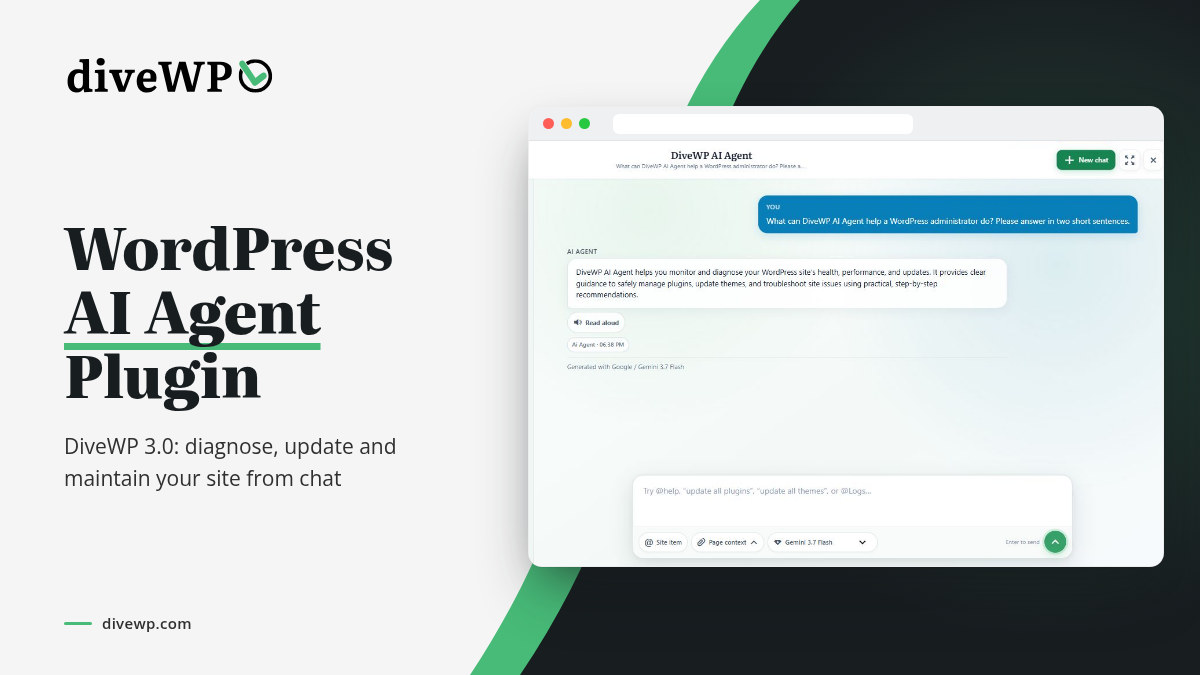
Looking for a WordPress AI agent plugin that actually understands your site? DiveWP 3.0 adds an opt-in AI Agent to wp-admin. It answers site-health questions from your own diagnostics, gathers evidence from the page you are on, and can update plugins and themes from chat, with your approval by default.
At a glance
- Free on the WordPress.org plugin directory
- Approval mode is the default for every maintenance action
- AI Agent needs WordPress 7.0+ and a provider in Settings > Connectors
- Tested with WordPress 7.1; non-AI tools work on 6.0+
In this guide
What is a WordPress AI agent?
A WordPress AI agent is more than a chatbot or a writing assistant. It works with the context of your site, uses tools to look things up, and carries out tasks when you allow it.
Most AI plugins
Focus on writing posts or answering visitors on the front end.
An AI agent for site admins
Focuses on the site itself: what is broken, what needs an update, and what to do next.
WordPress 7.0 laid the groundwork with the WordPress AI Client and the Connectors screen, where you configure an AI provider that plugins can build on. DiveWP 3 uses that foundation.
Why DiveWP 3 is a WordPress AI agent plugin built for site health
DiveWP has always been a site health toolkit: logs, scheduled tasks, hosting tests, performance, security, database health, plugins, WooCommerce, SEO, email, server settings, themes and administrator activity. Version 3.0 puts an AI agent on top of those checks, so you can simply ask.
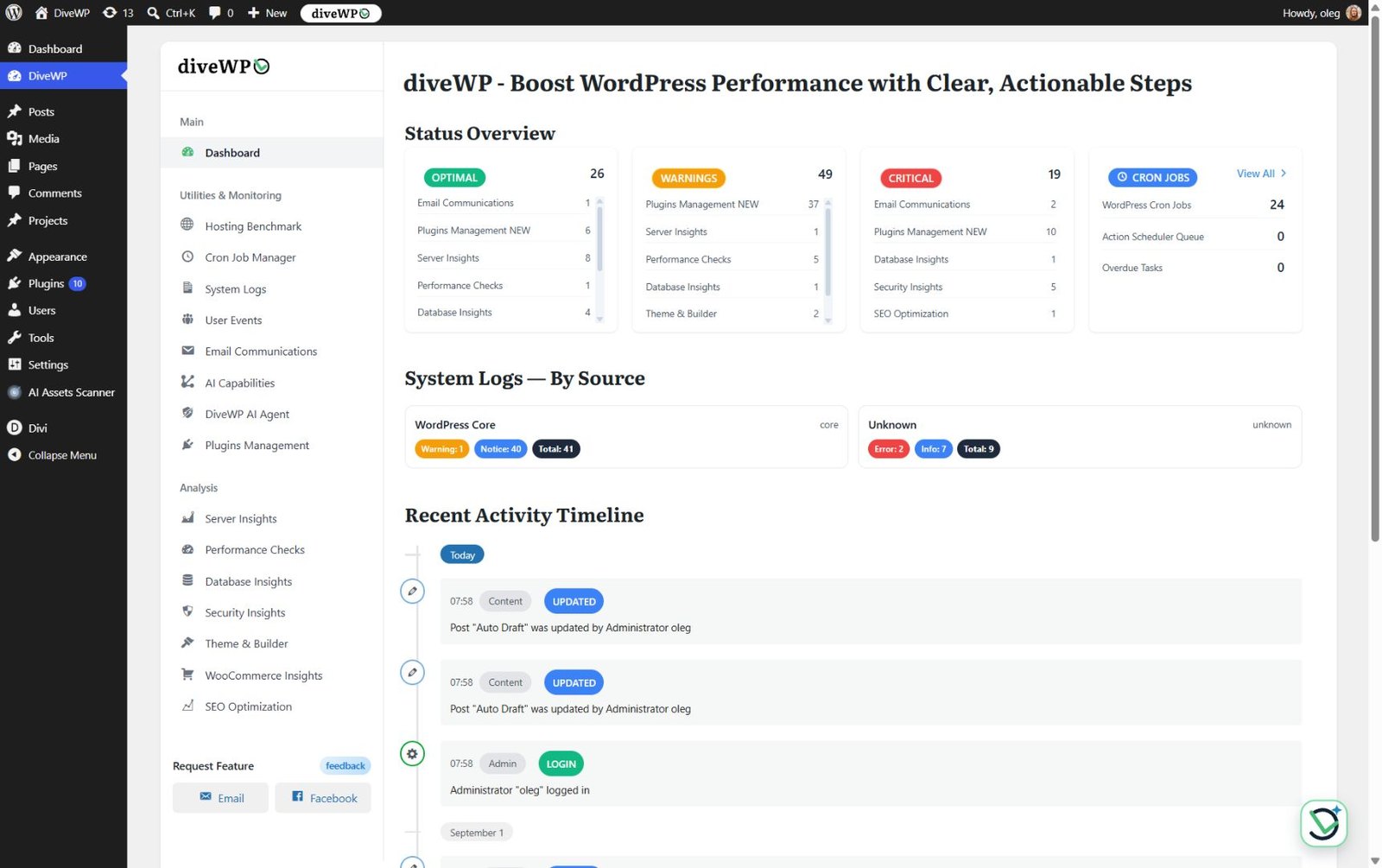
DiveWP dashboard with diagnostic totals, scheduled tasks, log sources, and recent activity.
Answers grounded in your diagnostics
The agent answers from DiveWP's read-only checks and optional page context. No separate investigation scan is needed first.
@ mentions for plugins, themes, updates and logs
Type @ to point the chat at the exact site item, so it uses the relevant evidence instead of guessing.
Context Lens: evidence from the page you are on
Collects bounded evidence: browser errors, failed-request summaries, selected elements and short reproduction traces, with sensitive data redacted.
A chat workspace that fits how you work
Resizable chat across wp-admin and, after consent, the logged-in frontend. Streaming answers, model choice, style and length controls, and Read Aloud.
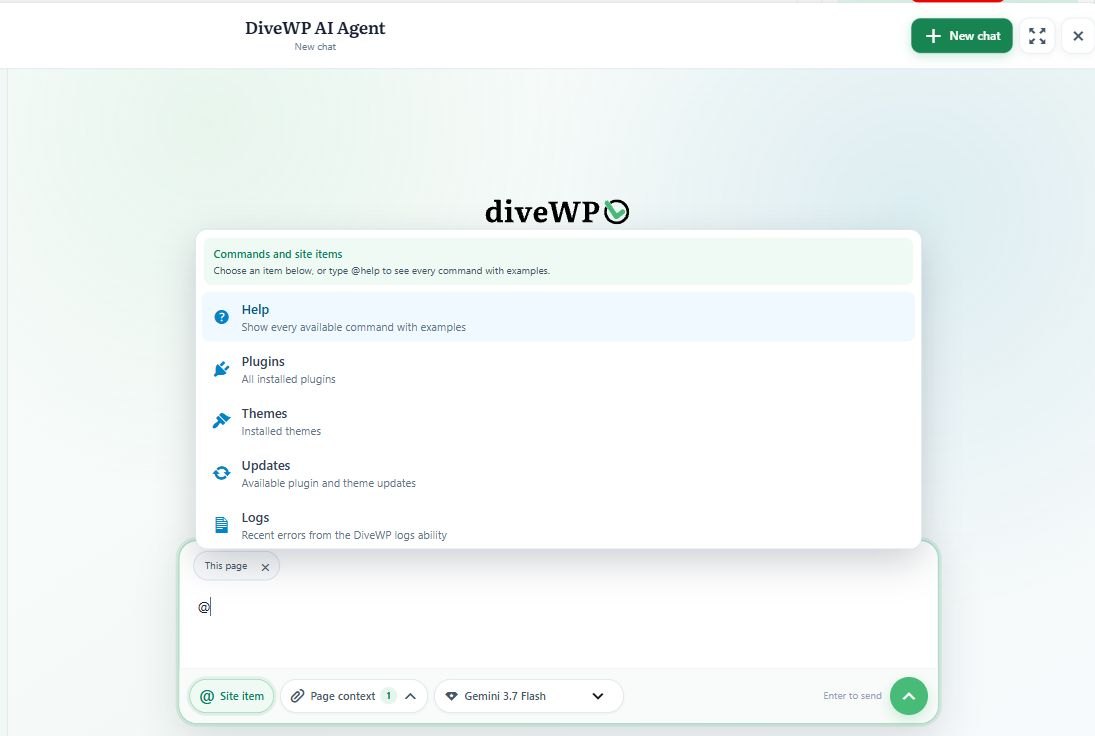
AI Agent site-item picker for plugins, themes, updates, and logs, with page context attached.
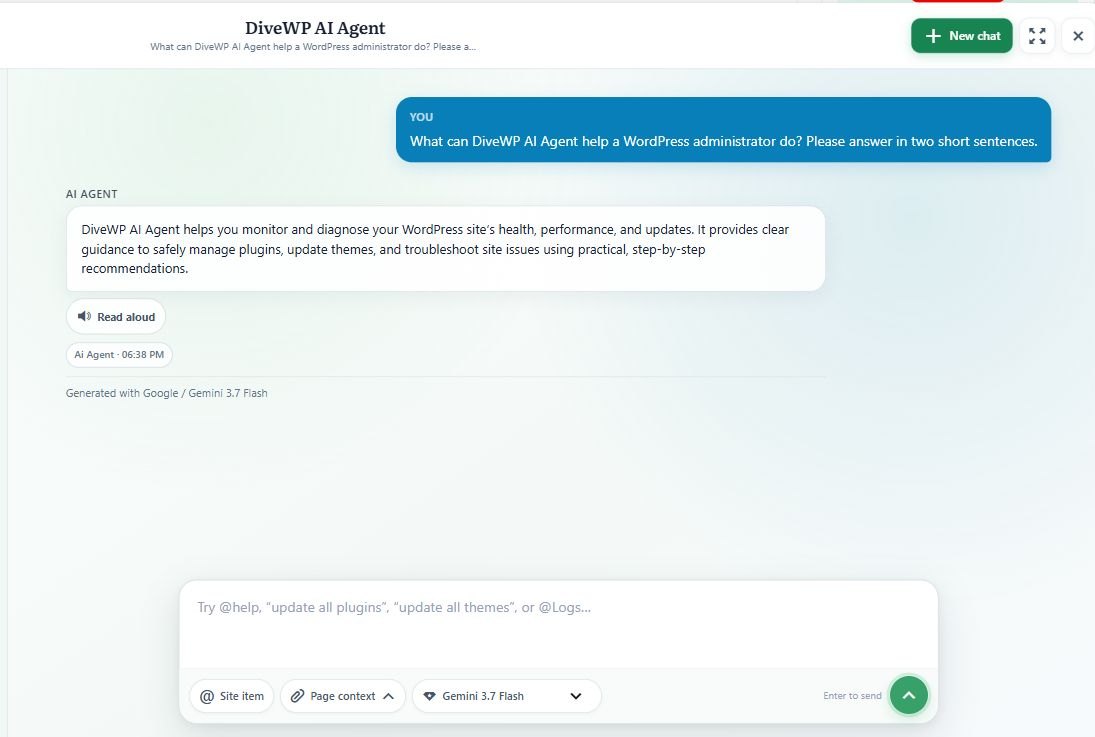
Saved AI Agent conversation with a Read Aloud control for the answer.
Conversations belong to the administrator who started them, with search, rename, archive, restore, delete, export and configurable retention (90 days by default).
Use it as a WordPress AI troubleshooter
When something looks wrong, ask about it where it happens. A typical session with DiveWP 3:
1
Open the screen where the problem shows up, in wp-admin or on the logged-in frontend.
2
Open the AI Agent chat and describe what you see in plain language.
3
Type @ to point to the plugin, theme, update or DiveWP log involved.
4
Let Context Lens add bounded evidence such as browser errors and failed-request summaries.
5
Need outside context? Turn on public WordPress research, or prepare a redacted case handoff for support.
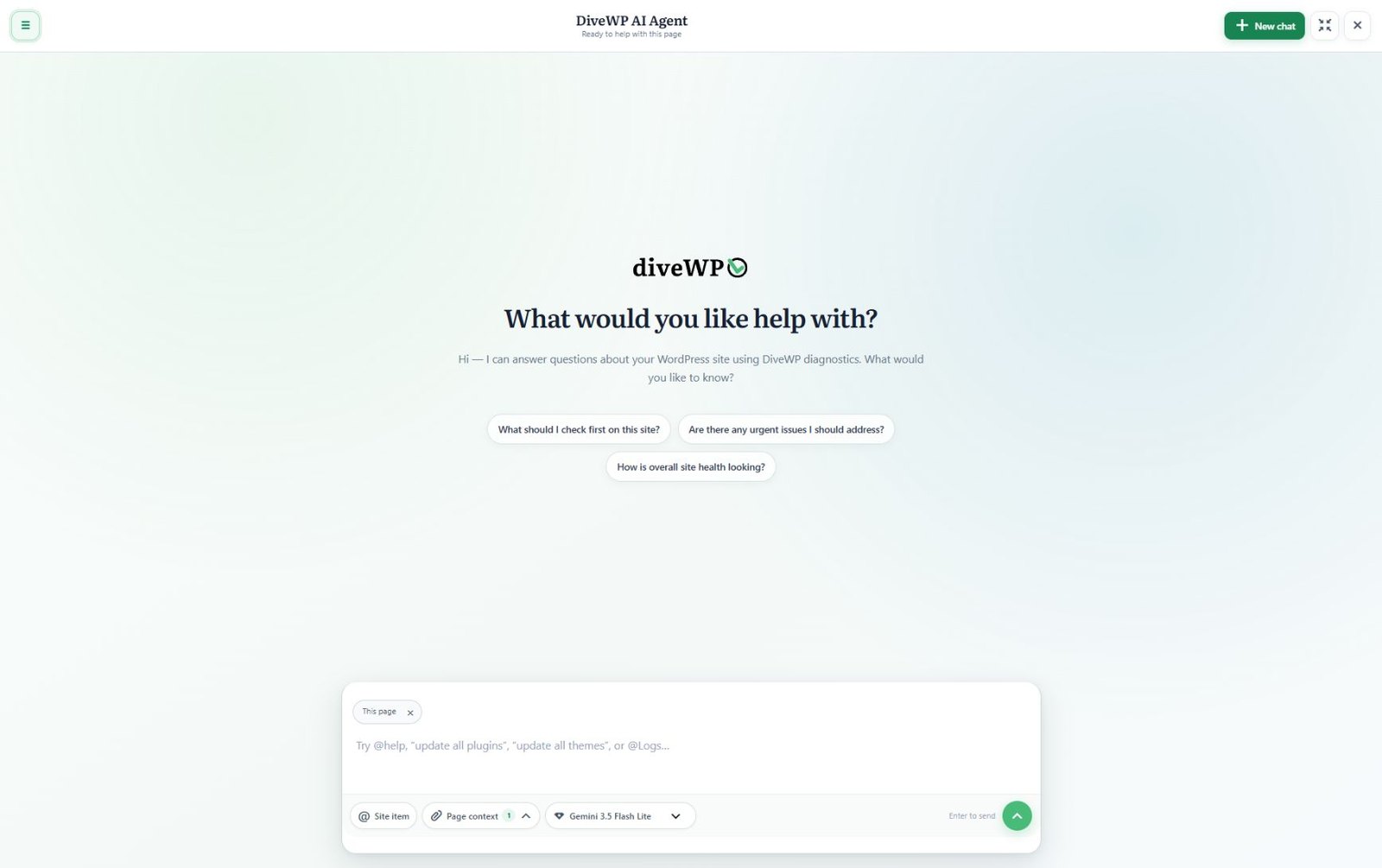
DiveWP AI Agent chat workspace with suggested WordPress questions and page context.
Behind the chat, System Logs cover wp-content/debug.log, WooCommerce logs and fatal errors when available, with severity, source and stack context. Public research keeps private site data out of search queries.
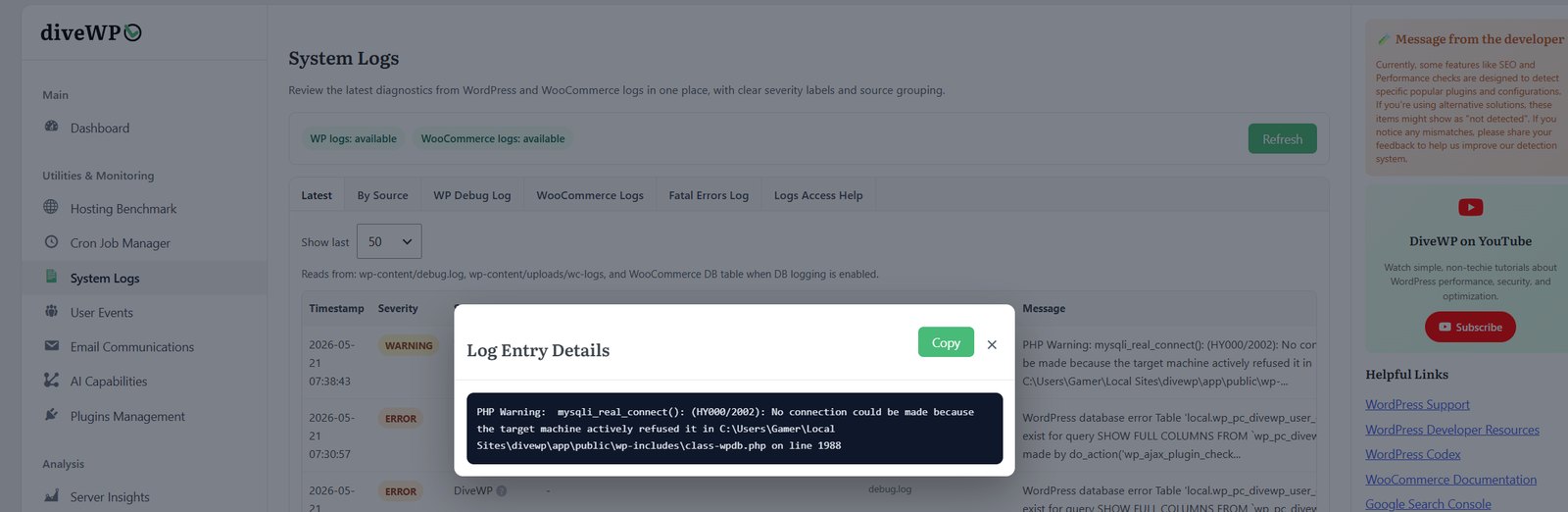
System log details and copy control.
How to update WordPress plugins safely from chat
DiveWP 3 adds verified plugin and theme maintenance to the chat: single and bulk plugin updates, theme updates, combined plugin-and-theme updates, plugin activation and deactivation, and theme activation. Every update request shows live per-item progress.
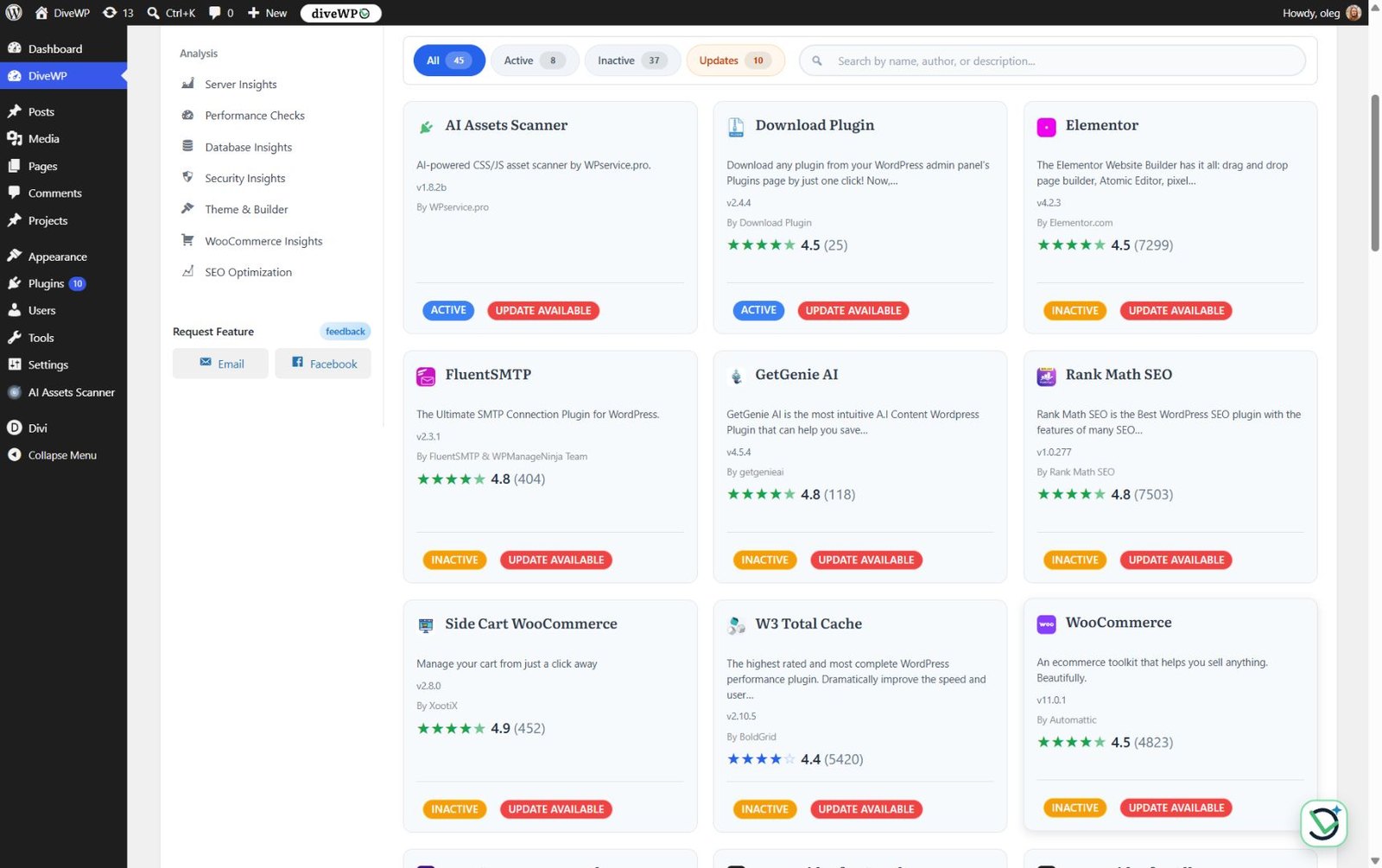
Searchable plugin manager with versions, status, ratings, and available updates.
Approval mode · default
Nothing runs until you click
Every maintenance action waits for your approval button.
Automatic mode · optional
Skips only the click
Per user. It still needs an explicit @ target and an action request, rechecks permissions and current state, verifies the result and keeps audit logging.
Tip: diagnostics and log mentions stay read-only. Take a fresh backup before a big batch of updates.
WordPress plugin rollback: undo an update that breaks your site
If an update causes trouble, a quick rollback is the fastest fix. The expanded Plugins Management screen shows WordPress.org ratings, reviews and version history next to updates, and offers a guarded rollback for eligible plugins.
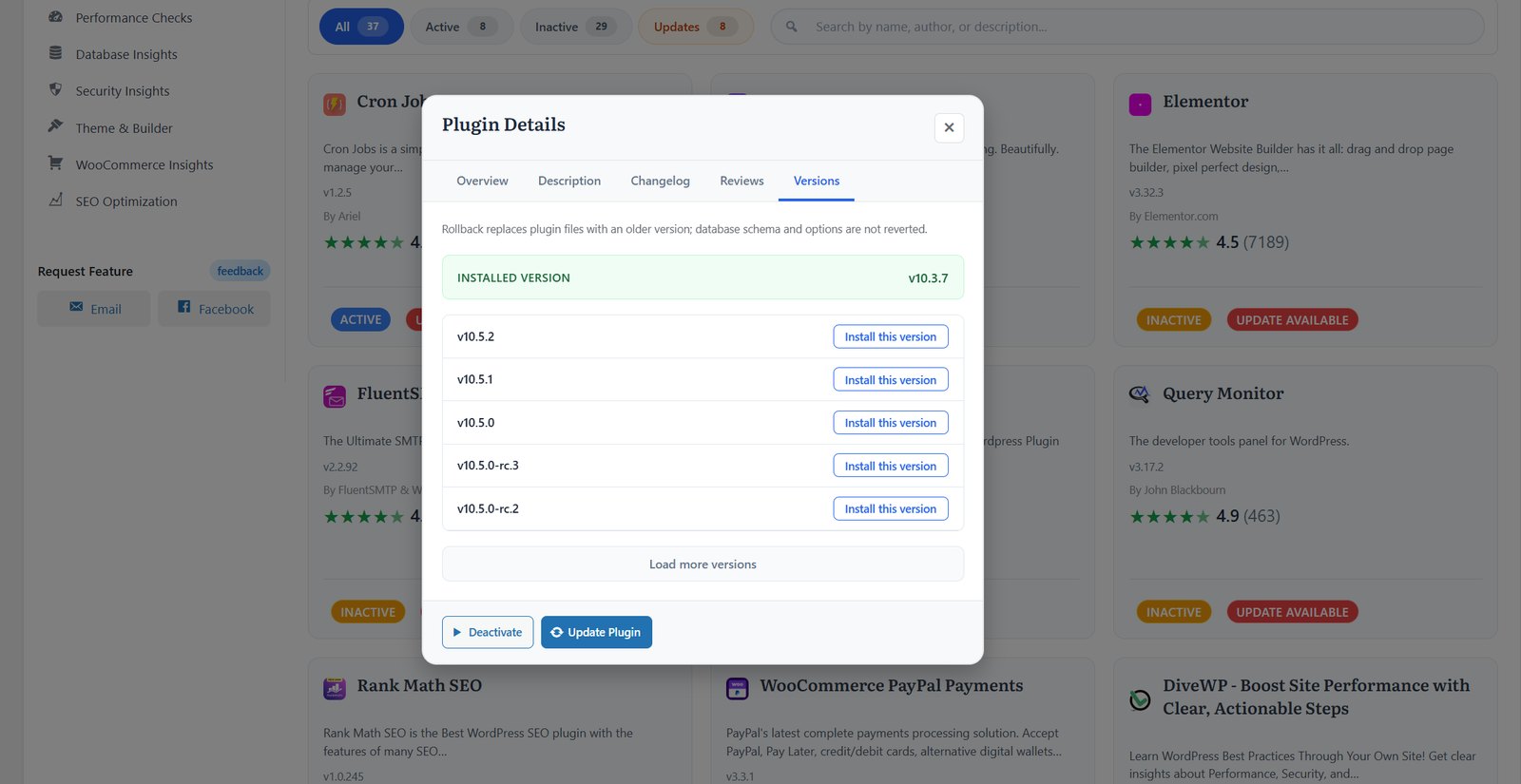
Plugin version history and rollback.
Good to know: a rollback replaces plugin files, not database changes or options. A backup is still your safety net, especially for plugins that change data during an update.
Get a WordPress site health report by email
Not every site gets a daily login. After you accept the AI Agent notice, DiveWP can send an optional, DiveWP-branded HTML site-health report built from its existing diagnostics.
- Every 30 days by default
- Or choose 7, 90 or 365 days, or turn it off
Version 3.0 also improves the dashboard's diagnostic totals and its scheduled-task and log summaries.
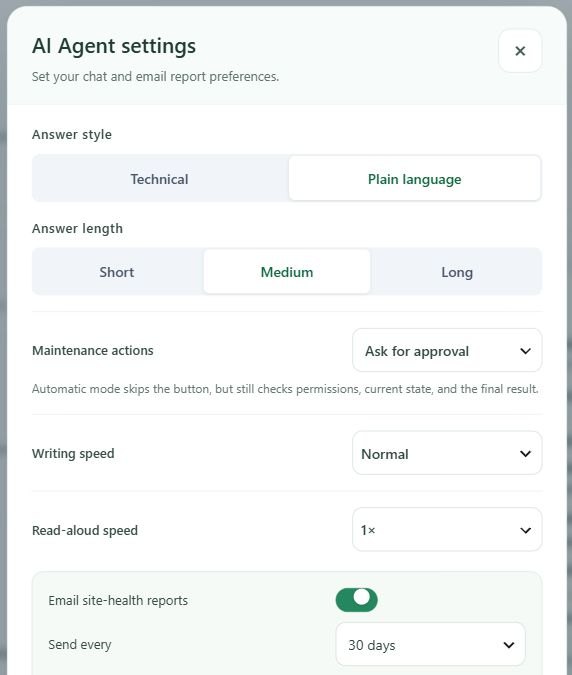
AI Agent settings modal with answer preferences, Read Aloud speed, and email report interval.
Built for WordPress 7: a WordPress 7 AI plugin with abilities and MCP
DiveWP 3 is tested with WordPress 7.1 and keeps working on older versions.
Standard (non-AI) tools
WordPress 6.0 or newer
Abilities API integrations
WordPress 6.9 or newer
AI Agent chat
WordPress 7.0 or newer, the WordPress AI Client, and a compatible provider in Settings > Connectors
PHP
7.4 or newer
On older WordPress versions, the AI Agent launcher shows update instructions while all non-AI tools keep working.
Already use external AI tools? DiveWP exposes 14 canonical abilities through WordPress REST and MCP, covering server, performance, database, security, theme, WooCommerce, SEO, email, hosting, cron, plugins, logs, User Events and AI Agent reports. The setup screen walks you through the Abilities API, the MCP adapter, Application Passwords and client configuration.
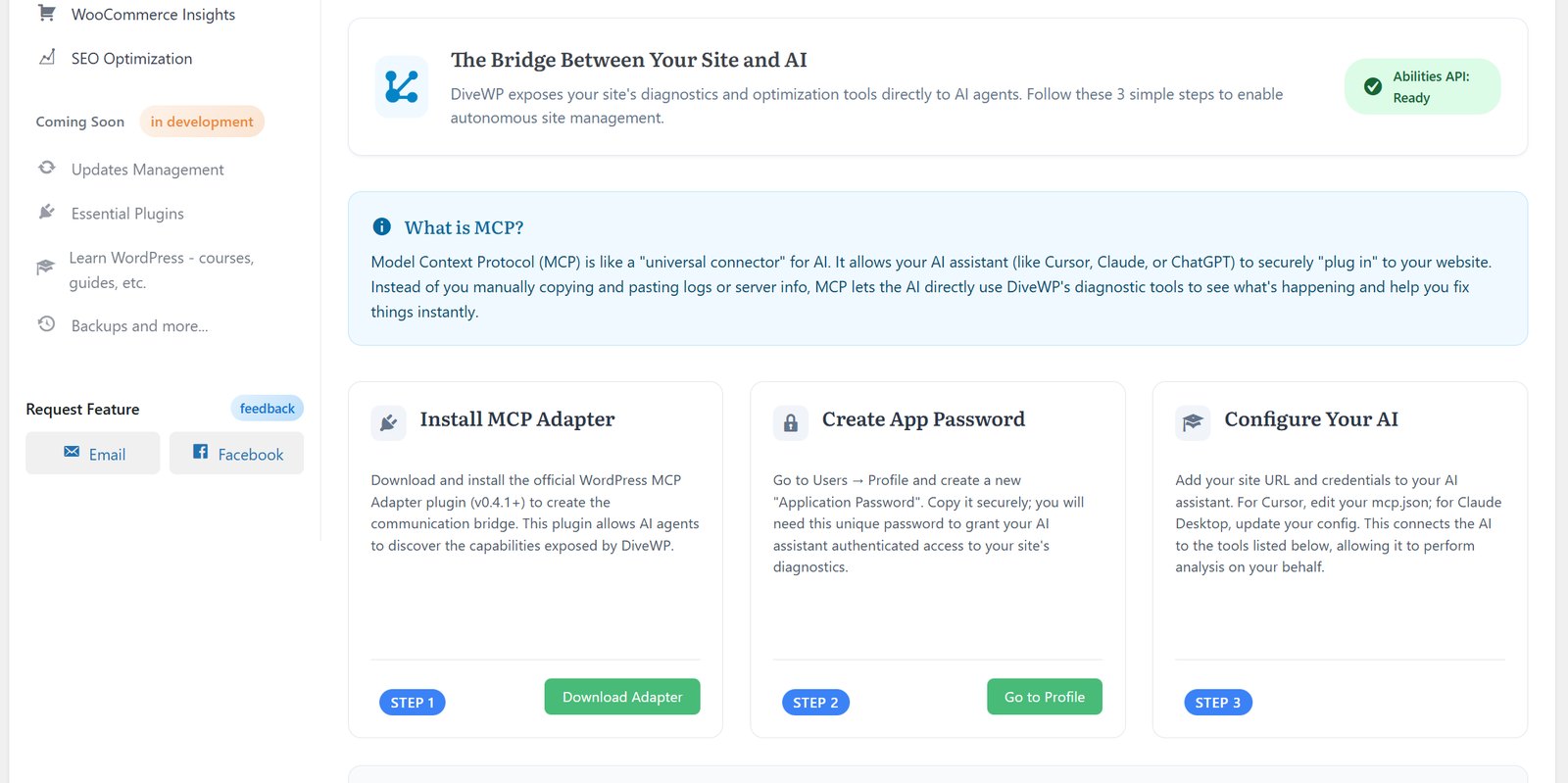
Abilities API and MCP setup.
Privacy and safety controls
An AI agent for WordPress is only useful if you can trust it. DiveWP 3 keeps the AI features bounded:
- Standard diagnostics do not use an AI provider.
- The AI Agent sends requests only through the provider you configure in Settings > Connectors.
- Evidence is bounded; credentials, salts, database values, authorization data, cookies, sessions, email and IP addresses, paths and URL queries are redacted.
- It never reads passwords, form values, browser storage, network bodies or cross-origin iframe content.
- Raw context snapshots are not saved with conversation history, and conversations support the WordPress privacy tools.
Review your AI provider's privacy policy, terms and billing before you turn the AI Agent on.
Install the WordPress AI agent plugin in five steps
Already using DiveWP? Update it from your Plugins screen like any other plugin. New to DiveWP? Install it from WordPress.org:
1
In WordPress, go to Plugins > Add New.
2
Search for "DiveWP" and select Install Now.
3
Activate the plugin.
4
Open DiveWP from the WordPress admin menu.
5
For the AI Agent on WordPress 7.0+, configure a compatible provider in Settings > Connectors, then review and accept the AI Agent notice.
Prefer a manual install? Get the ZIP from the DiveWP plugin page on WordPress.org or the DiveWP downloads page, then upload it through Plugins > Add New > Upload Plugin. Setup details are in the DiveWP documentation.
WordPress AI agent FAQ
Does WordPress have an AI agent built in?
WordPress 7.0 added the WordPress AI Client and the Connectors screen, which AI plugins can build on. DiveWP uses them: its AI Agent needs WordPress 7.0+, the AI Client, and a compatible provider in Settings > Connectors.
Is it safe to update all WordPress plugins at once?
It can be, if you can see what happens and react. DiveWP 3 shows live per-item progress for bulk updates, asks for approval by default, and verifies the result. Take a backup first, and update a small batch if a plugin is critical to your site.
Can I undo a WordPress plugin update?
Yes, for eligible plugins. DiveWP's Plugins Management offers a guarded rollback to an earlier version. A rollback replaces files only, not database changes or options.
Can AI fix WordPress problems it cannot see?
Guessing without evidence is risky, which is why DiveWP grounds its answers in evidence: its own diagnostics, the logs you mention, and bounded page context from Context Lens. Diagnostics stay read-only. Chat maintenance covers plugin and theme updates, plugin activation and deactivation, and theme activation, with checks and audit logging.
Are there free AI plugins for WordPress?
Yes. DiveWP is free to install from WordPress.org, and all non-AI tools work without an AI provider. The AI Agent needs a compatible text-generation provider under Settings > Connectors, and that provider's terms and charges apply.
Try the DiveWP AI agent plugin today
Turn your site's diagnostics into a conversation you can act on, while you stay in control of every change.
Ideas or issues? Tell me on the DiveWP support forum or the contact page. Your feedback has shaped DiveWP since the DiveWP 2 Beta.